 Sideline SideKick Tracker
A team is set up once and then left alone. Roster, formations, plays, colors — after that, everyone you invite is working off the same setup, and the only thing that changes week to week is the schedule.
Two ways onto a team
There is a difference between starting a team and joining one, and it decides what you can do afterwards.
- Create a team and you are its owner. You get everything: settings, colors, staff, and the ability to hand out access.
- Join with an invite code and you arrive as a fan — the score, the play-by-play and the stats, but not the playbook. The owner can move you up to coach once you are in.
If your head coach or a coordinator already made the team, do not make a second one — ask them for the code. Two teams means two rosters, two playbooks and two sets of stats that will never add up. Joining is covered in Coaches, fans and settings.
Creating a team needs a coach subscription, and it covers your whole account — up to five teams, not one subscription each. Joining a team with a code is always free, so your assistants, your parents and your players never pay anything.
The first two weeks are free if your Apple Account is still eligible for an introductory offer; the app only advertises the trial when Apple confirms you are, rather than promising something you may already have used. The subscription screen in the app shows the price and terms that apply to you — that is the one place it is stated, so it can never disagree with what Apple charges. Payment is charged to your Apple Account, and you can cancel any time in the Settings app.
Create your team
-
Sign in, then tap Create a team. If you are already on a team, it is on the Team tab, near the bottom: Create another team.
-
Identity. Three boxes.
- Team name — the school or program, the way you would write it in a report.
- Acronym — up to six characters, forced to capitals. This is what fits on the score bug during a game, so shorter is better. SST, not S. Shore Tech.
- Mascot — optional. The line under the boxes shows you exactly how the full name will read.
-
Look. Pick your primary color, and add a logo if you have one. The crest preview updates as you choose. Without a logo the app draws your acronym in your color, which looks fine — this is not a step to get stuck on.
-
Season. The year, and your quarter length. Quarter length is used for clock entry during a game. Massachusetts high school is 12 minutes; set yours to whatever your association plays.
-
Playbook. Either Start blank and enter your own, or load one of three starter sets:
Starter set What it is Size Pro / I-Formation Downhill run game from under center with play-action off it. 8 formations · 15 plays Gun Spread Shotgun sets, zone run game, quick passing and RPOs. 8 formations · 14 plays Wing-T Series-based misdirection: buck sweep, trap, waggle off the same look. 8 formations · 12 plays These are deliberately generic — nobody's actual terminology. They exist so that a coach who downloads the app on Tuesday has something to tap on Friday. Rename, reorder and delete anything you like afterwards.
-
Tap Create. You land on the home screen, and the team is live.
The roster — by hand or from a spreadsheet
Go to Team → Roster. Both routes are behind the + in the top right.
By hand
Tap Add player and fill in the number, the name, the positions and the grade. Fine for a handful of additions or a transfer in October. For a full varsity roster, import instead.
From a spreadsheet
Tap Import from CSV, then Choose file. The app reads Excel (.xlsx) and CSV. You almost certainly already have this file — it is whatever your program gave the athletic department.
Sideline SideKick Tracker looks for these columns, in any order, with any capitalization:
| Column | Also accepted as | Notes |
|---|---|---|
| Name | First / Last as two columns | Either shape works. |
| Number | # | The jersey number. |
| Position | — | Several are fine: QB/DB. |
| Grade | Class | A grade (11) or a graduation year (2028) — either is understood. |
A file this simple imports cleanly:
Name,#,POS,Grade
James Aikey,10,QB/DB,10-
Read the summary before you tap Import. The app tells you which columns it understood, which it ignored, and — if your file has no header row — that it is reading the first three columns as name, number and positions. That warning is worth believing; check a few rows underneath it.
-
Decide whether you are adding or replacing. If you already have players, the app says plainly whether the existing roster will be deleted first or the new players added alongside. Read that sentence.
-
Check anything marked (guessed). An orange guessed tag means the app inferred a value rather than reading it. It will not invent a jersey number — a player whose number could not be read comes in without one for you to fill in.
-
Tap Import. The button carries the count, so you can see how many players you are about to bring in.
Whether a player dressed is set per game, not on the roster. Do not keep two rosters or delete injured players. The roster is your program; availability is a game-night decision, made on the game's own roster screen.
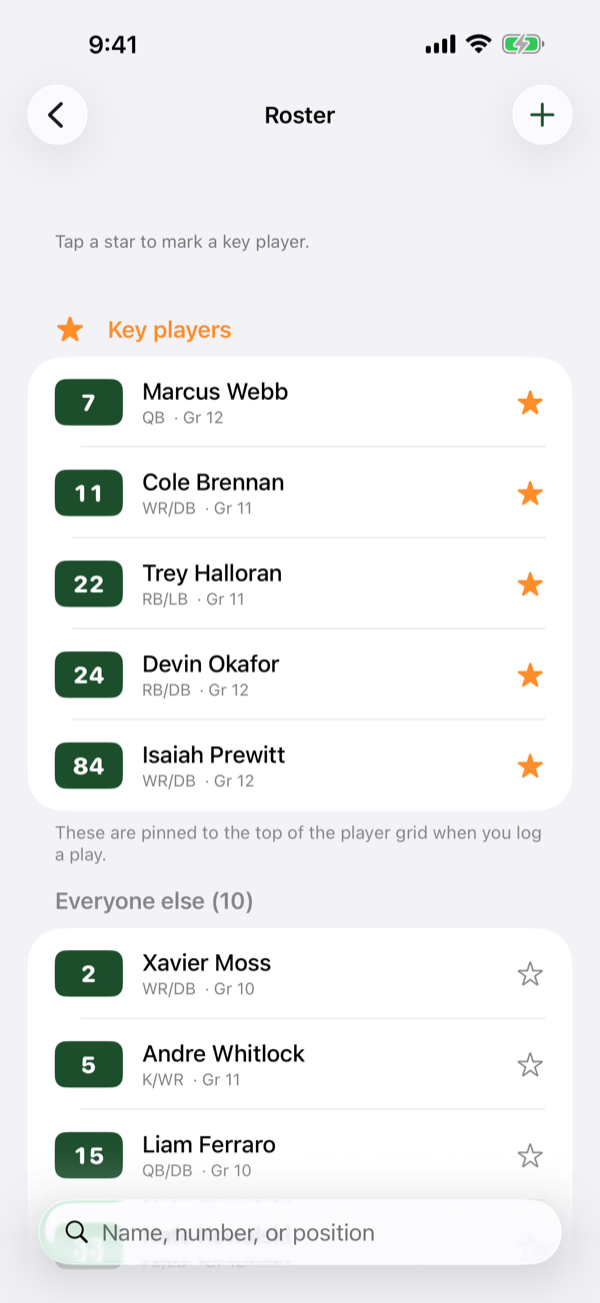
Key players
Swipe a player and tap Key player to star them. Four to six is the right number — your ball carriers and the people you actually feed. Two things follow from it:
- On the Add Play screen, the player grid opens on Key players instead of the full roster. That is the difference between one tap and hunting through ninety numbers with a play clock running.
- Stars are staff-only. Fans never see them. Who a staff considers its top handful is a read on your own team, and a parent seeing their kid unstarred is a conversation nobody needs.
Formations and plays
These are two separate lists, in Team → Formations and Team → Plays. Each works the same way, and each has the same three ways to fill it, all behind the +:
- Add formation / Add play — one at a time.
- Import from CSV — a whole list at once.
- Load a starter set — one of the three templates above, even if you started blank.
Order matters, and it is yours to set. The order of this list is the order the chips appear on the Add Play screen on Friday night. Put your base sets first. Tap Select… to drag them into the order you call them in.
Importing a playbook
The playbook importer looks for columns called Formation and Play Name, in any order. Each column is read as its own list, so they do not have to be the same length — which is exactly the shape of the "Lists" tab most staffs already keep:
Formation,Play Name
Gun Right,Power
Gun Left,Sweep
Stack Right,Quick Pass
A Play Type column is used if you have one. If you do not, the app guesses the type from the play's name and tells you how many it guessed, so you can correct them on the next screen.
Direction is not a column. If your spreadsheet has one, the app will say it ignored it. Direction is Left / Middle / Right, and it is chosen on the Add Play screen at the time — not baked into the play's name.
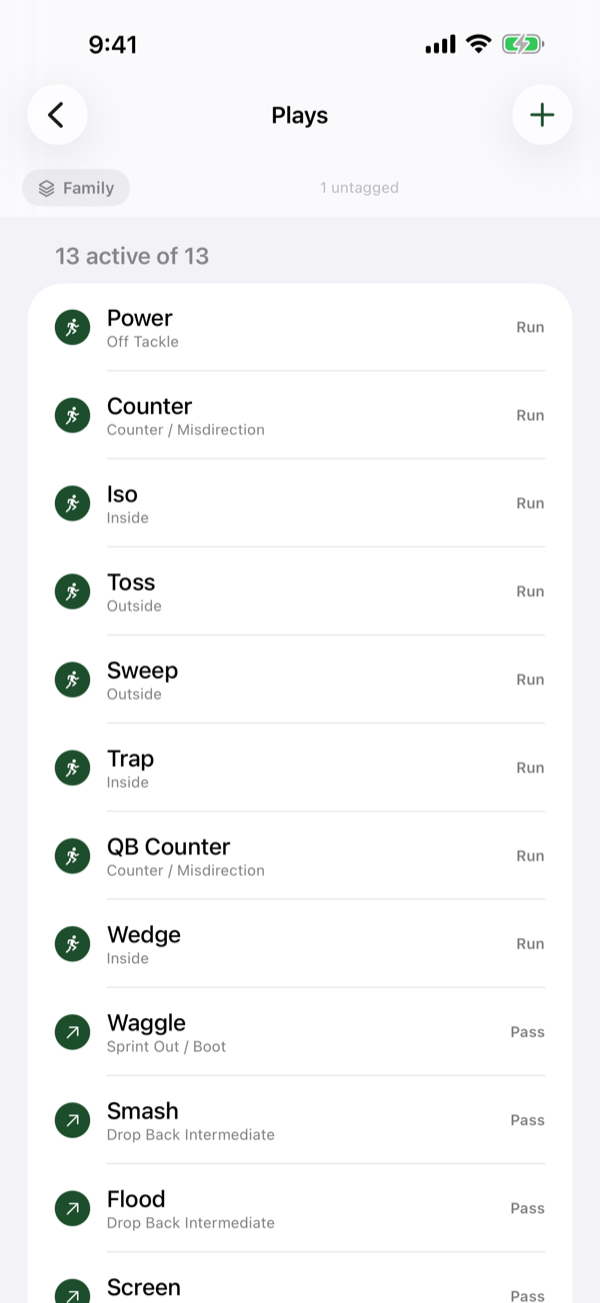
Play type and play family
These two fields are the difference between an app that stores your plays and an app that tells you something about them. Both are set once, in the playbook — never on a Friday night.
Play type
Run, pass, or special teams. This determines how the play is counted in run/pass splits and in player stats. Get it right and every number downstream is right.
Play family
The kind of play, pooled across every call of that kind. Power and Counter are two calls and one read.
| Run families | Pass families | Either |
|---|---|---|
| Inside · Off Tackle · Outside · Inside Zone · Outside Zone · Counter / Misdirection · Option | Play Action Pass · Quick Pass · Drop Back Intermediate · Sprint Out / Boot · Screen · RPO | Special Play — a halfback pass, a fake punt, anything whose point is that it is not what it looks like |
Tag your families. It takes one afternoon, once. It is what lets Coach's Read tell you "outside zone is going nowhere" by the second quarter, instead of waiting until one specific call has been run three times. Untagged, that whole section of the read reads "nothing tagged yet". The plays list shows a count of how many are still untagged, so you can see the job shrink.
Turning something off, versus deleting it
This is the one place in the app where the wrong choice cannot be undone, so it is worth thirty seconds now.
Deleting a formation or a play removes its name from games you have already played. Those plays keep their numbers and their yards, but the play-by-play, the stats and the export all read with a hole where the name was — and re-creating it later does not put the name back.
So: if you have simply stopped running something and want it off the crowded Add Play screen, use Turn off. It disappears from Friday night and every finished game still reads correctly. The app offers you Turn off instead inside the delete confirmation, which is the button to take.
Delete is for a mistake — a typo, a duplicate, something you added last week and never called.
More than one team
You can be on several: a varsity and a JV, or your own program and one you help out with. Each keeps its own roster, playbook, games and stats, and there is no bleed between them. Switch with the Switch team control at the top of the home screen. One subscription covers up to five teams.
Your display name is the exception — it is Team → Your name, and changing it updates how you appear on all of your teams at once.