 Sideline SideKick Tracker
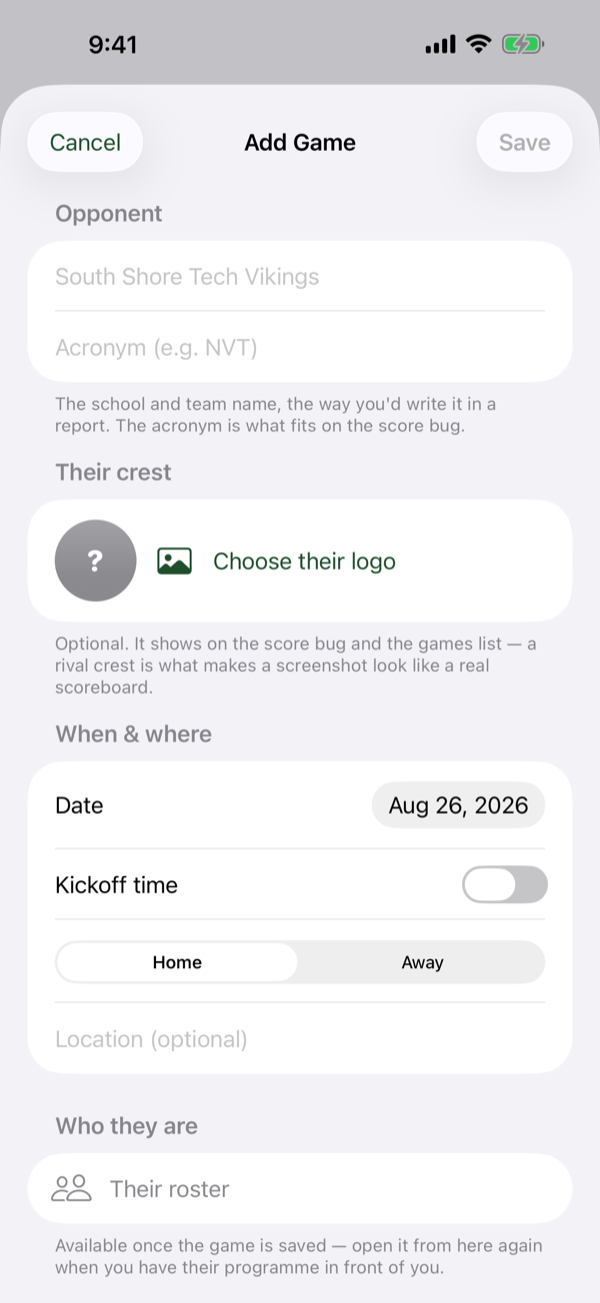
You can put your whole schedule in during the summer, or add the next opponent on the bus. The app does not care which — a game is five fields, and only one of them is required.
Add a game
-
From the home screen, open Schedule, then tap + in the top right. (On an empty schedule there is an Add game button in the middle of the screen as well.)
-
Opponent. Their school and team name, the way you would write it in a report, plus an acronym. The acronym is what fits on the score bug during the game, so keep it short — the same rule as your own.
-
Their crest. Optional, and the one piece of decoration worth the twenty seconds: a rival crest on the score bug is what makes the screen look like a real scoreboard rather than a form.
-
When & where. The date, and a location if you want one. Kickoff time is a switch — leave it off for a game you have only penciled in, turn it on when the time is set.
-
Who they are. Their roster is optional and can wait. It is what lets you name an opposing player on a play — the kid who returned the punt, the safety who made the tackle — and it is worth filling in for a rival, not for week one against somebody you will never see again.
-
Tap Save.
The game on your home screen
You do not have to go looking for tonight's game. The card at the top of the home screen is whichever game matters most right now, and the header above it tells you which rule it used:
- Playing now — a game you have marked live.
- Next up — the next one on the schedule, or the most recent one if the season is over.
Tap the card and you are on the game screen. That is the whole route.
Marking it live
Play entry does not open until the game is live. If the ADD PLAY button is not where you expect it, this is why — the screen shows Start the game instead.
-
Open the game and tap Start the game on the card, or open the menu (⋯) in the top right and choose Mark live. Either works.
-
Set the quarter as the game goes. The quarter buttons sit across the top of the game screen. Everything you log — plays, scores, Booth notes — is stamped with the quarter that is selected, so moving it at the end of each period is worth the habit.
You can only move the quarter forward. Earlier quarters are logged already; if something landed in the wrong one, fix the play or the score itself rather than winding the game back.
Who dressed tonight
Availability is a game decision, not a roster decision. From the game menu (⋯), Game roster is where you mark who dressed. Your season roster stays exactly as it is — nobody gets deleted for spraining an ankle.
Marking it final, and reopening it
Menu (⋯) → Mark final. Marking a game final locks play entry. That is the point of it: it stops a stray tap on Saturday morning adding a seventy-first play to a game that had seventy.
If you need back in — a missed play, a wrong score — the owner can choose Reopen game from the same menu. A coach cannot; that is deliberate.
The postgame report
Menu (⋯) → Postgame report. It is ready the moment the game is over, because it is built from the plays you already entered — there is nothing to compile and nothing to wait for.
It carries the line score, the quarter-by-quarter scoring, and player totals. From the same menu, Export to spreadsheet gives you the game as a file you can mail to a coordinator or open in Excel.
For the whole year at once, use Stats & Export → the export button on the home screen, or the export button on the Schedule. That produces a season workbook rather than one game.
Finding a game later
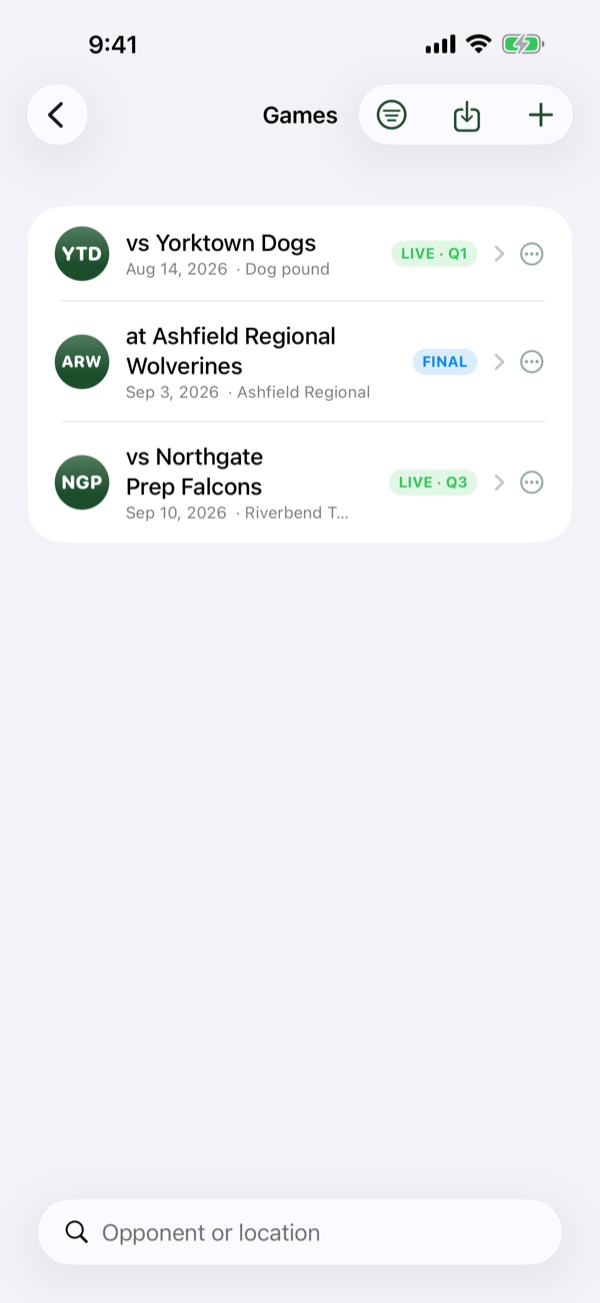
Schedule on the home screen lists everything. The control in the top left filters and sorts it, and the header tells you what you are looking at — "4 of 11" — so a filter you forgot you set cannot quietly hide half your season. If a list looks short, that count is the thing to read.
Editing and deleting a game
Swipe a game on the schedule, or use the row's ⋯ button, for Edit game and Delete game.
Deleting a game takes everything in it. The plays, the scores, the play calls, their roster for that game, and any Booth notes go with it, and it cannot be undone. Your scouting on that opponent is kept — that lives on the opponent, not the game.
For a game that simply never happened — a cancellation, a postponement you rescheduled — deleting is right. For a game you played, keep it. An ugly game is still a season's worth of numbers.