 Sideline SideKick Tracker
Everything on this page happens on one screen. Learn the run play and the pass play and you have ninety percent of a Friday night; the rest is there when the rest of the game happens.
The game screen
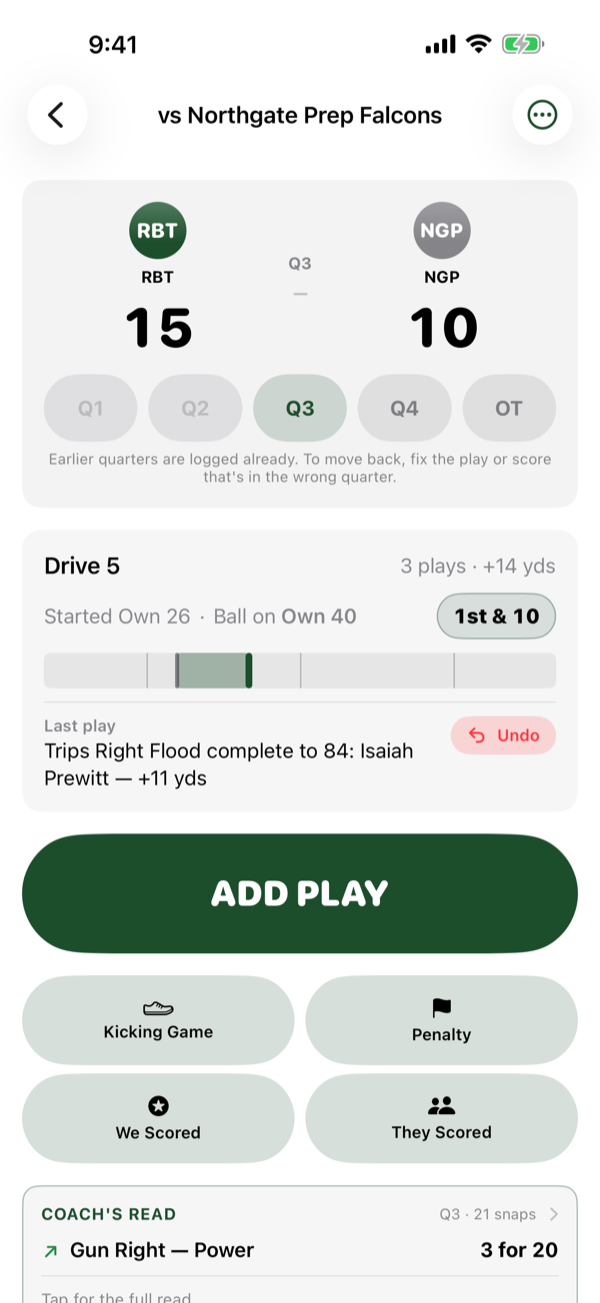
Top to bottom:
- The score bug — both crests, both scores, the quarter buttons underneath.
- The current drive — which drive it is, how many plays, how many yards, where it started and where the ball is now.
- ADD PLAY — the big button. This is the one you will hit forty times.
- Quick actions — Kicking Game, Penalty, We Scored, They Scored.
- SCORING — every score in the game, and what the try was.
- PLAY LOG — everything you have entered, newest first, tappable to edit.
If ADD PLAY is not there, the game is not live yet — see marking it live.
How the app talks about the field
Every spot is written from your team's point of view, in the words a coach already uses:
- Own 35 — your own 35.
- 50 — midfield.
- Opponent 42 — their 42.
- Touchdown! — the end of the field you are going to.
In the tighter rows of the play log these compress to O35, 50, P42 and TD. It is the same vocabulary everywhere in the app, including the export, so a spreadsheet reads the way the screen did.
A run play
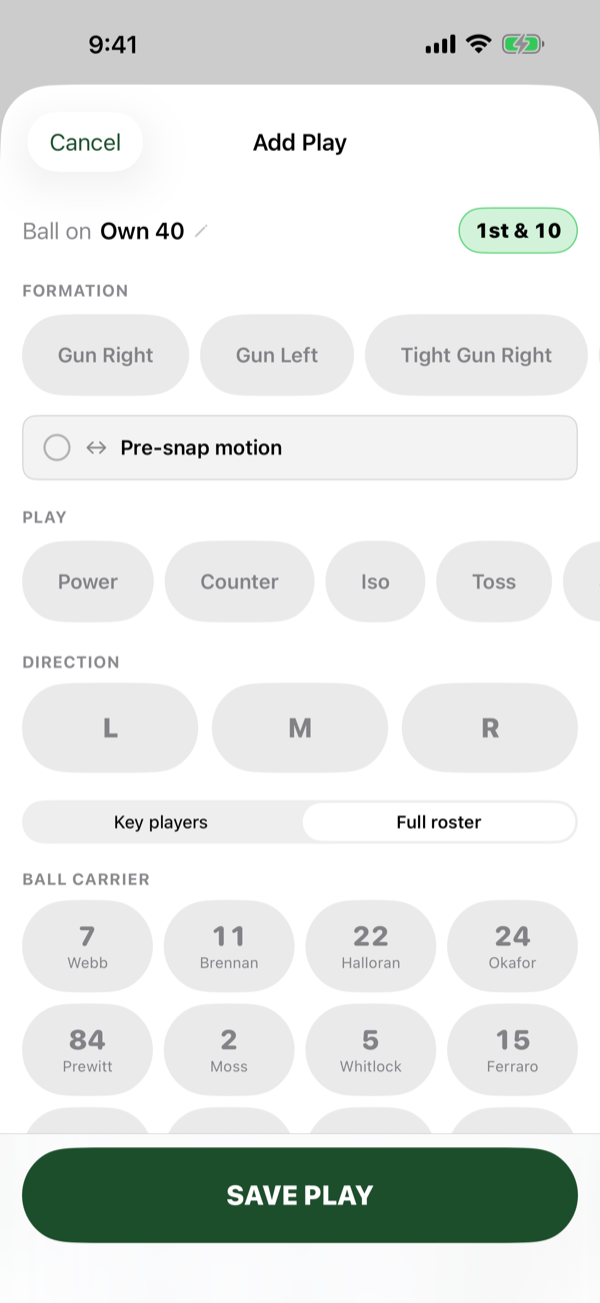
The core loop. Five taps and a save.
-
Tap ADD PLAY.
-
Formation. Tap the chip. These are in the order you set in the playbook — if you are reaching past three rows for your base set, go and reorder them.
-
Play. Tap the call.
-
Direction. Left, Middle or Right. This is not part of the play's name — it is chosen here, every time, which is what lets the app tell you later that you run right on 3rd and short.
-
Ball carrier. The grid opens on Key players — your starred handful. Switch to Full roster with the control above the grid the moment a lineman comes up with the ball.
-
Spot the ball. See below — this is the one control worth two minutes of reading.
-
Tap Save. You are back on the game screen with the drive updated, ready for the next snap.
A pass play
Identical, except the app asks who threw it and what happened. Choose a play whose type is pass and three extra fields appear.
-
Passer. The app suggests whoever threw the last pass in this game, so a quarterback who is in for the whole night is already selected. Tapping the suggested player keeps him — you are not deselecting him by confirming him.
-
Result. Four buttons:
Result Then the app asks Spot the ball at Complete Receiver — required Where he was brought down Incomplete Target — optional Leave it at the line of scrimmage Interception Target — optional Where the ball changed hands Sack Target — optional Where he was dropped — behind the line -
Naming the target on an incompletion is worth doing. It costs one tap and it is the only way the app can ever tell you who you are throwing at, as opposed to who is catching.
Spot the ball
One control, used on nearly every play, and built to be used without looking down for long.
- Four quick buttons cover most snaps in one tap. On a normal play they are No gain, -5, +5 and +10.
- The slider is coarse. Use it to get near.
- The − and + steppers are exact. Use them to land on the yard.
- The big number above the strip is the gain, not the yard line — because the gain is what you are actually deciding. It goes red when the play lost yards and green in the end zone.
- The field strip underneath draws where the play started and where it ended, with your own end zone on the left, the way you are facing it.
The quick buttons change with the job. On a kick they become 25 / 30 / 35 / 40 — the distances a high-school kicking game actually produces. On a return they become No return / 5 / 10 / 20, and they run the correct direction for whoever is carrying it.
A touchdown has its own button on the form — Touchdown! — so you never have to drag the slider to the end of the field.
After a change of possession the app does not know where the ball is until you spot it. That is why a new drive opens with "Spot the ball to start drive 7" rather than guessing. Spot the first play of the series and everything downstream — the drive summary, the next play's line of scrimmage, the down — follows on its own.
Down & distance
The app tracks it for you and shows it at the top of the Add Play form. Tap it to correct it — after a penalty, a replay of down, or anything the app could not have known.
Down and distance is a description, not an umpire. The app never overrules you with it and never refuses a play because the numbers look wrong. If you set 2nd & 4, that is what the record says.
A touchdown, and the try
-
Log the play as normal, and either spot the ball in the end zone or tap the Touchdown! button on the spot picker.
-
Save. The game screen shows a prompt — "Touchdown on play #23 · Add the points and the try". Tap it.
-
The scoring sheet opens with the six points already filled in and the scorer suggested from the play. Confirm the scorer, and whether it was a run or a pass.
-
The try. Three choices — PAT (1 point), 2 Point (2 points), or No try. Then how it was attempted (Run, Pass, Kick) and whether it was Good or No good.
A field goal and a safety are complete as they stand — the app does not ask for a try on either.
The kicking game
Punts, kickoffs and both returns go in through one door: Kicking Game on the game screen. Pick which of the four it was and the form asks for exactly what that play has and nothing it does not.
Two of the four are our kick, and two are our return, and almost everything follows from which. On a punt or a kickoff the ball is leaving: the drive ends, the yards belong to the kicker. On a return the ball is arriving: this is the first play of a possession, not the last, and the yards belong to the returner.
Punt
A punt is a scrimmage snap, so it carries a down and distance — 4th & 8 — like any other play.
Punter — who kicked it.
Kick direction — left, middle, right.
-
Kick travelled to — where the ball was caught, picked up, downed or went out. This is what measures the punt: from your line of scrimmage to here.
-
Returned to — their new line of scrimmage. Leave it where it landed if there was no return. The app carries the landing spot forward for you, so an untouched punt is no extra taps.
Punt into the end zone and leave it there and the app reads it as a touchback, not a 20-yard return: the ball is placed on the 20 by rule, nobody carried it, and the return is recorded as zero. The punt's net — distance minus return — is what appears in your kicking stats.
Kickoff
Same shape as a punt, minus the down and distance: a kickoff is not a down. Kicker, direction, Kick travelled to, Returned to.
Under the drive rule this app uses, the kickoff is what closes the drive. Score, then log the kickoff, and the drive is properly finished. Skip it and you leave a drive hanging open — which is why the game screen offers you the kickoff the moment a score goes in.
Punt return and kickoff return
This is the part worth understanding once, because it is the part most apps get wrong. Three different spots exist on a return, and they are not the same spot.
| The app asks | What it means | Counted? |
|---|---|---|
| They punt from / They kick from | Their line of scrimmage — where the kick came from. | Information only. We do not track an opponent's kick distance. |
| Ball punted to / Ball kicked to | Where the ball reached you. The return starts here. | Yes — this is the start of the measurement |
| Returned to | Where your returner was brought down. Your new line of scrimmage. | Yes — this is the end of it |
So return yards are measured from the catch, not from their snap. Measuring from the snap would credit your returner with every yard the other team's leg produced, which is what makes kickoff-return numbers look backwards in a spreadsheet.
Returner — who brought it back.
Set where the ball reached you.
-
Set where it was returned to. The catch spot follows into this box until you move it, so a fair catch or no return is no extra work — leave it where you caught it.
Penalties
There are two ways in, and they are for two different moments.
A flag on a play you are already writing down
Inside the Add Play form, under Flags, turn on Penalty. Say whether it was On us or On them, and whether it was Accepted. That is it.
A flag with no play attached
Use the Penalty quick action on the game screen — a dead-ball foul, a flag between snaps. It asks who it was on, the type, accepted or declined, and where the ball ends up, then LOG PENALTY.
Declined flags are kept but not counted. Anywhere the app reports penalties it says "accepted flags only", because a declined flag had no effect on the game. Flags and bad snaps are also left out of Coach's Read, so one holding call does not make your best play look broken.
Bad snap
A switch inside the Add Play form, under Flags. It lives there rather than on the game screen because you only ever know it was a bad snap once you are already writing the play down.
Ending a drive
Most of the time you do not have to do anything: a touchdown, a punt or a kickoff ends the drive on its own. When it ends some other way, use Drive ended with at the bottom of the Add Play form. It offers Drive continues and then:
- Touchdown
- Field Goal
- Punt
- Turnover on Downs
- Interception
- Fumble Lost
- Safety
- End of Half
Points that did not come off a play call
A punt returned all the way, a pick six, a field goal, anything they scored — none of these have a formation or a direction to answer for. Use the two quick actions:
- We Scored — opens the scoring sheet on a return touchdown, with the try, and no play call to fill in.
- They Scored — the same for the other side. Their points, their try.
The prompts
The game screen watches what you enter and offers the next thing rather than making you remember it. Each one is a card you tap, and each one appears once and then gets out of the way.
| When | What it offers |
|---|---|
| You logged a touchdown | Add the points and the try |
| Somebody scored | Set up the kickoff — or the kickoff return, if it was them |
| It is 4th down | Is this a punt? Opens the kicking game |
| 4th down came up short | Turnover on downs? Ends the drive |
| They returned one of your plays for a touchdown | Add their points and the try |
| An accepted flag on the play that ended the drive | An accepted penalty can keep a drive alive — tap to check |
That last one is the app being careful rather than clever. Only you know which flag it was and which way it was taken, so it asks instead of deciding.
Undo, edit, delete
- Undo — on the Last play card. The fastest fix for a play entered by mistake.
- Edit — tap any play in the play log. Everything is editable, including the kicking-game fields. Tapping a punt in the log is how you go back and add the punter you skipped.
- Delete — from the same place. Every play after it is renumbered and re-spotted automatically, so deleting play 12 of 40 does not leave you with a broken game.
Two coaches, one game
Everyone on your staff can enter plays into the same game at the same time, on their own phone or iPad, and everything appears on everyone's screen as it lands. The common setup is an assistant entering plays on an iPad while the coordinator keeps Coach's Read open on a phone.
None of it waits for a signal. Plays save on the device the instant you tap Save and sync when the phone finds a bar. If two coaches both enter a play while out of signal and end up with the same play number, the app repairs the numbering when they reconnect — it is fixed when it happens rather than prevented on every tap, because a play clock does not wait for a server.