 Sideline SideKick Tracker
There are three roles and no custom permissions to configure. The design assumption is that your formations and play names are the one genuinely proprietary thing in the app, and that the score, the play-by-play and a player's stat line are things a parent has every reason to see.
The three roles
| Role | Who it is | What it means |
|---|---|---|
| Owner | Whoever created the team. One per team. | Everything a coach can do, plus team settings, colors, and managing staff. |
| Coach | Your staff. | Run games, enter plays, and edit the roster and playbook. |
| Fan | Parents and players. | The score, the play-by-play and stats. No formation or play names, no key players. |
Who can see and do what
| Owner | Coach | Fan | |
|---|---|---|---|
| See the live score and play-by-play | Yes | Yes | Yes |
| See player stats | Yes | Yes | Yes |
| Enter plays and run a game | Yes | Yes | No |
| Edit the roster | Yes | Yes | No |
| See formation and play names | Yes | Yes | No |
| See who is marked a key player | Yes | Yes | No |
| Coach's Read and Scouting | Yes | Yes | No |
| The Booth | Yes | Yes | Never |
| Team settings, colors, staff | Yes | No | No |
| Reopen a game marked final | Yes | No | No |
These are not just hidden buttons. The rules on the server enforce the same list. A fan does not merely lack a Playbook row on screen — the playbook is refused to their account outright, so there is nothing to read even for somebody who went looking.
A coach who opens the Team tab still sees the Team settings row, with a note saying only the owner can change them. That is on purpose: an explanation a coach can find beats a button that silently does nothing.
The invite code
Found at Team → Staff — the row is named for your staff, and the screen it opens is Staff and fans. Six characters. Anyone who enters it joins your team as a fan.
Hand it out early, and to everybody
This is the one setup step with nothing to weigh up. A parent holding the code gets the live score, the whole play-by-play in plain English and their kid’s stat line updating through the game — and it costs them nothing, now or later. There is no fan tier to upgrade to, no per-parent charge and no ads. If they want to know what they are joining before they do, what a fan sees is the page to send them.
Most staffs paste it once into the team group chat and never think about it again. Worth doing before your first Friday rather than after it: a parent who joins on Thursday follows the game that week, and a parent who joins in week six missed five of them.
Treat the code as public to your program. Everyone already on the team can see it and can pass it on — which is the point, because it is the thing that gets forwarded into a team group chat. That is exactly why it hands out the role that gives away nothing a rival staff would want.
Use Send invite to share it however you normally reach parents. If it gets somewhere you did not intend, tap Generate a new code: the old one stops working immediately, everyone on the team sees the new one, and coaches who already joined are not affected — nobody gets kicked out.
Joining a team
Download the app and sign in.
-
Tap Join a team with a code — on the welcome screen if you are new, or on the Team tab if you are already on a team.
-
Enter the six-character code and tap Look up code. The app shows you which team it belongs to before you commit.
-
Tap Join. You are in, as a fan. If you are staff, ask the owner to move you up.
Joining is always free. Only creating a team needs a subscription.
Promoting a parent to coach
Team → Staff. Everyone who joined with the code is under Fans; your staff is under Staff. Change someone's role to Coach and they move up the screen into the staff list, where you can see it happened.
The two lists are kept apart deliberately — a staff of four inside a list of ninety parents is not a staff list.
Removing someone
From the same screen, Remove from team. They lose access. Plays they entered are kept — removing a coach in October does not delete September.
Team Settings, switch by switch
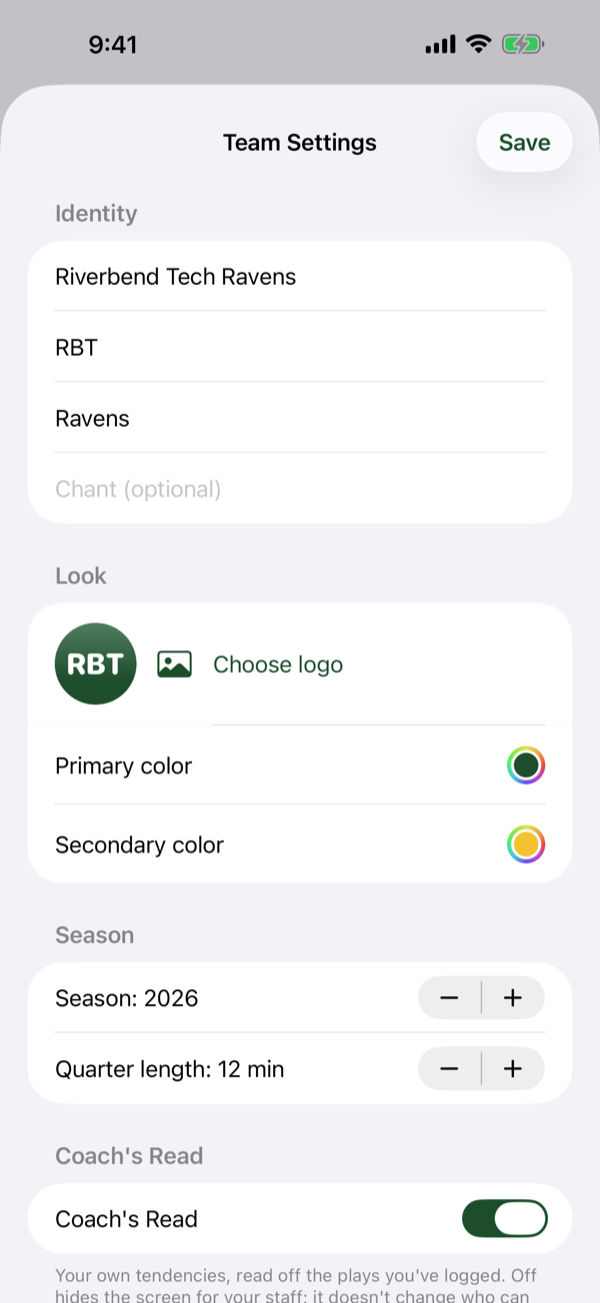
Owner only, behind the gear icon on the home screen. Everything here is saved with the Save button in the corner.
Identity
- Team name
- Acronym — up to six characters, forced to capitals.
- Mascot — optional.
- Chant — optional. Something your program shouts.
If you paste something too long, the app does not quietly shorten it. It tells you which box is over and by how many characters, and refuses the save until you fix it — losing the end of a team name silently is worse than being told.
Look
Logo, Primary color and Secondary color. These drive the crest and the score bug.
Season
The season year, and Quarter length in minutes (anything from 4 to 20). Quarter length is used for clock entry.
Coach's Read
A switch, on by default. Turning it off hides the screen for your whole staff. It does not change who can see your playbook — that is the fan role, and it is unaffected either way. See Coach's Read.
The Booth
A switch, off by default. Turning it on adds the shared staff notepad for everyone on the team; leaving it off leaves the feature out of the app entirely for this team. It is coaches only and is never shown to fans. See The Booth.
Your own name
Team → Your name. This is how you appear in the staff list, and on Booth notes, so your coordinator knows who saw what.
It belongs to you, not to a team: changing it updates every team you are on at once.
Also in the You section is the rule set you keep stats under. It is a note on which book you are working from — it does not change how the app spots the ball or counts yards.
What a parent actually sees
Worth signing in as a fan once, so you can answer the question when a parent asks. They get:
- The live score, updating as you enter plays.
- The play-by-play as plain sentences rather than coach's shorthand — because the shorthand is the formation and the play call.
- Player statistics, including their kid's.
They do not get formation names, play names, key-player stars, Coach's Read, Scouting, or the Booth.
A parent who has not confirmed their email address sees a Confirm your email address banner on the Team tab until they do.
There is a version of this written for the parent rather than for you — For parents and players. That is the link to send alongside the code.
Who can see your team's information
Your team's information is visible to your team. The developer can also see it to answer a support request, to look into a security problem, or where the law requires — never for anything else, and every time is logged. The same sentence appears in the app, on the Team tab, so nobody has to come to a website to find it.
The Privacy Policy has the detail.
Leaving, deleting, and the danger zone
| Action | Who | What happens |
|---|---|---|
| Leave this team | Anyone but the owner | You lose access. Nothing on the team is deleted. You need an invite code to get back on. |
| Delete this team | Owner only | The team and everything in it. Permanent. |
| Delete my account | You | Your account across every team. Permanent. |
Simulate no network
Under Developer on the Team tab. It puts the app into the same offline mode a phone with no signal is in, without you having to turn off WiFi. If your stadium has no service, spend ten minutes with this on before your first Friday — it is the cheapest possible way to find out that everything still works.